inurl:quantity Explained: What It Means and How to Use This Google Search Operator

Search for “inurl:quantity” on Google and the results look bizarre: physics exam questions, banking aptitude problems, inventory-management formulas — but no article actually explaining the term you typed. Here’s the two-sentence answer: “inurl:” is a Google search operator that restricts results to pages with the following word in their URL — so “inurl:quantity” simply shows pages whose web addresses contain “quantity.” That’s why you get exam questions instead of an explainer: those pages won on a technicality, not because they understand the query.
What Does “inurl:quantity” Actually Mean?

Break the string into two parts:
- “inurl:” — one of Google’s advanced search operators. It tells Google: only show me pages that have this word somewhere in their URL (web address).
- “quantity” — just the example word being filtered on.
So inurl:quantity means: “Find me pages with the word ‘quantity’ in the URL.” That’s it. It’s not a code, not a hack, and not a secret command — it’s a documented search filter, covered in detail in the complete list of Google search operators.
And the colon matters: write it with no space after it (inurl:quantity ✅, inurl: quantity ❌). A space breaks the operator and Google just searches the words normally.
Why Do the Results Look So Strange?
Google didn’t misunderstand you — the operator did exactly what it was told. Look at the top results: they’re mostly pages from testbook.com, an Indian exam-prep site. Why? Because their URLs literally look like this:
testbook.com/question-answer/the-physical-quantity-having-the-dimensions...testbook.com/question-answer/given-below-are-two-quantities-named-1-and-2...testbook.com/question-answer/what-will-be-economic-order-quantity-for-an-item...
Every one of them has “quantity” in the URL — so they pass the inurl: filter. Google isn’t ranking them because they’re about your query; they’re just the pages that matched the technical condition. That’s why a search for a search-operator string returns such a random-looking mix.
“Quantity” Has Four Different Meanings in These Results
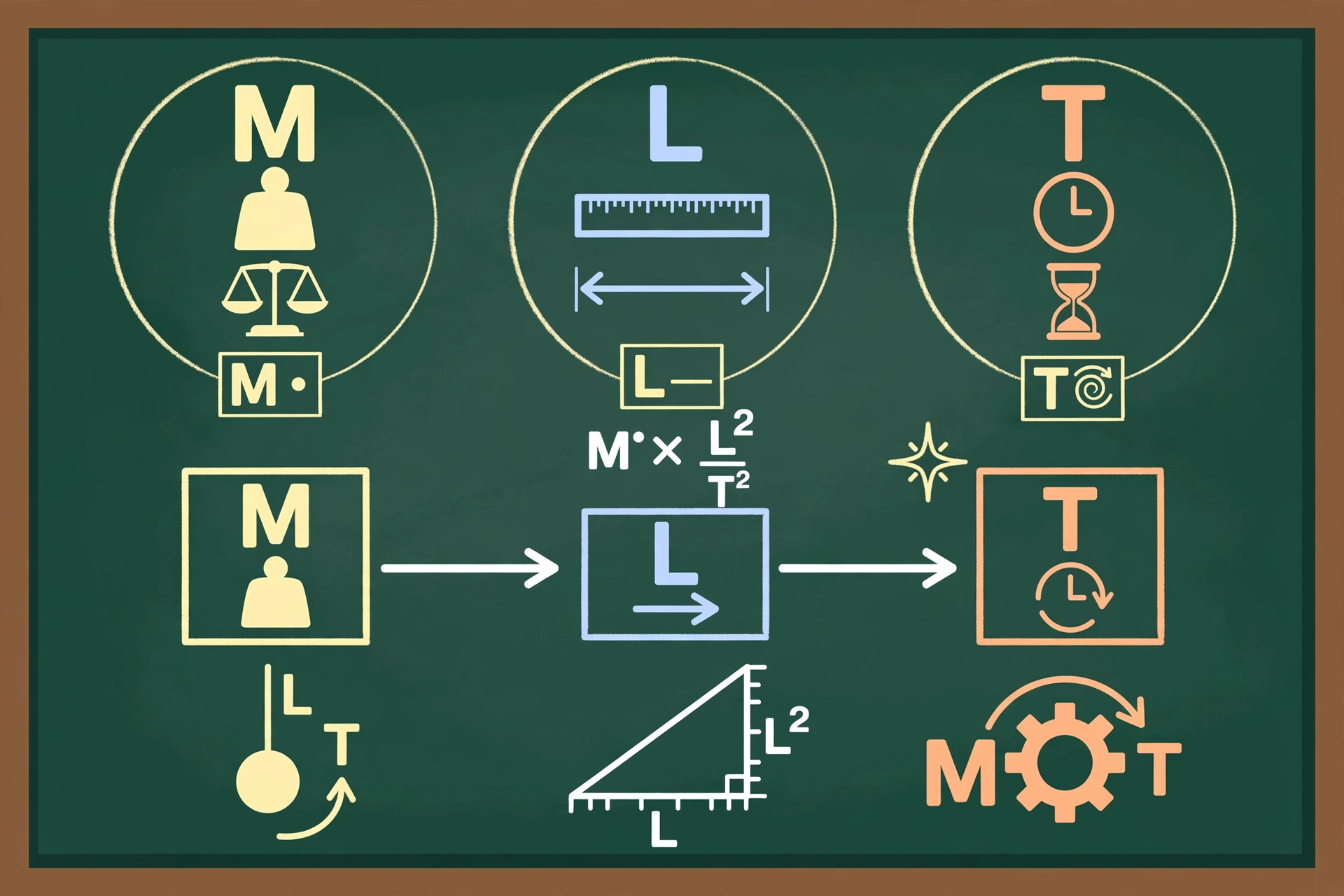
Here’s where it gets interesting. The word “quantity” means something different in each corner of these results:
| Context | What “quantity” means here |
|---|---|
| Physics | A physical quantity — anything measurable (length, mass, time), described by dimensions like M (mass), L (length), T (time). Example: finding which quantity has dimensions M⁻¹L⁻³T³A² (answer: electrical conductivity). |
| Aptitude exams | “Quantity I vs Quantity II” — a fixed question format in banking/SSC exams where you compute two values and pick their relationship (>, <, =, etc.). |
| Business / inventory | Economic Order Quantity (EOQ) — the order size where ordering cost equals holding cost, giving the minimum total inventory cost. |
| Tech / ecommerce | A data label: schema.org’s Quantity data type (“3 kg”, “4 milligrams”), and Google Merchant Center’s [quantity] feed attribute (how many units are in stock). |
One word, four worlds. No wonder the search results feel chaotic.
Who Actually Searches inurl:quantity — and Why?

Most people who type an inurl: query fall into a few groups:
- SEOs and marketers — the biggest users. They run searches like
inurl:write-for-usto find guest-post opportunities, orinurl:pricingto study competitors’ pricing pages. Someone hunting bulk-quantity calculators or MOQ pricing pages would naturally tryinurl:quantity. - Students — looking for exam Q&A pages (which is exactly what the current results serve).
- Ecommerce researchers — checking stock-quantity or bulk-order pages.
- The curious — people who saw the string somewhere (a forum, a tutorial, a scraped page title) and just want to know what it means. That’s probably you.
How to Use inurl: Searches Yourself
The operator is genuinely useful once you know the syntax. The rules:
- No space after the colon.
inurl:quantityworks;inurl: quantitydoesn’t. - Combine it with other operators. Examples:
site:example.com inurl:quantity— pages with “quantity” in the URL, only on example.cominurl:quantity intitle:calculator— “quantity” in the URL, “calculator” in the titleinurl:quantity filetype:pdf— PDF documents with “quantity” in the URL - Use quotes and minus for precision.
"inurl:quantity"searches the literal phrase;inurl:quantity -examremoves exam pages. - Know its sibling:
allinurl:. Whileinurl:applies to one word,allinurl:quantity calculatorrequires both words in the URL.
More examples to try: inurl:calculator, inurl:write-for-us, inurl:pricing — each one filters the web down to pages built around that word.
Frequently Asked Questions
Is inurl:quantity a code or a hack?
Neither. It’s a documented Google search operator — a filter, not a vulnerability. Anyone can use it.
Does the colon really matter?
Yes. The colon is what turns “inurl” from a normal word into an operator. No space between the colon and the word.
Why did I get exam questions instead of an explanation?
Because the operator filters by URL, not by meaning. Exam pages happened to have “quantity” in their web addresses, so they matched. Until now, nobody had written the explainer you’re reading.
What’s the difference between inurl: and allinurl:?inurl: filters on a single word; allinurl: requires every following word to appear in the URL.
Can I use inurl: on other search engines?
It’s a Google operator. Bing and others have their own operator sets — some overlap, some don’t.
The Bottom Line
“inurl:quantity” is simply Google’s inurl: filter with “quantity” as the example word — a URL search that accidentally surfaced physics problems, exam questions, and inventory formulas. Now you know what the string means, why the results look random, and how to run operator searches of your own. Happy filtering.
Confused by other strange search strings? Read our guide on how to stay safe when looking up unfamiliar terms online — it covers the checks worth making before trusting results you don’t understand.